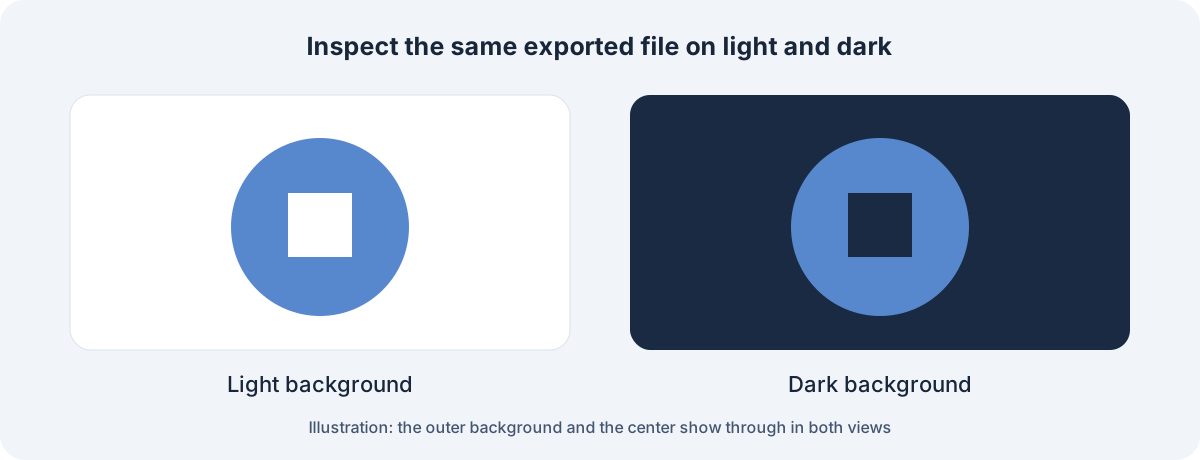
Test the same PNG over light and dark backgrounds
Use the same downloaded output for both checks. A viewer can display its own solid background even when the file has transparent pixels, so its first preview is not conclusive.
- Open a copy in an editor that supports layers and transparency.
- Place a light-colored layer underneath the image, then switch that layer to a dark color.
- Check whether the area around the subject changes with the background. Review soft edges as well as fully empty areas.
- If the white rectangle or checkerboard remains unchanged, inspect the image pixels and any visible background layer.
- Reopen the corrected export in the destination application rather than relying only on the editing preview.
Match the symptom to the next check
The W3C PNG specification supports both opaque and transparent image representations. Having PNG in the filename does not establish that this specific file contains transparent pixels.
| Symptom | Possible explanation | What to do next |
|---|---|---|
| Viewer shows white; editor composites correctly | Viewer backdrop | Check the destination rather than erasing the subject again |
| Checkerboard appears over every background | Checkerboard may be painted into the pixels | Obtain the source asset or remove the pattern in a working copy |
| White rectangle stays fixed | Opaque pixels or a visible background layer | Inspect the layer stack and the actual export |
| Thin pale or dark rim | Edge pixels retain some old background color | Refine the mask while comparing two backdrops |
| Correct source; wrong delivered image | Export or downstream conversion changed the result | Check the downloaded format and the delivered file |
Keep transparency through the export
Export a separate PNG from the corrected working document. Keep the layered source if you may need to refine the mask again. Check that unwanted background layers are excluded from the intended output rather than deleting your only original.
A PNG file may represent transparency through an alpha channel or other permitted transparency data. For the practical check, focus on whether the relevant pixels composite correctly. Do not reject a valid transparent PNG simply because a tool reports no explicit full alpha channel.
Check the edge before calling the cutout finished
A cutout that looks convincing on white may show a fringe on a dark slide. Compare the final display size as well as a close view. Hair, soft shadows and translucent objects can need different edge treatment from a hard-edged product silhouette.
For a transparent PNG that is not working, identify whether the problem is the viewer, opaque pixels, a background layer or the export path. Repeating an automatic background removal without that diagnosis can remove detail you wanted to keep.
Questions, answered
Does every PNG have transparency?
No. PNG supports transparent and opaque representations; the individual file may be fully opaque.
Is a checkerboard always proof of transparency?
No. It can be an editor backdrop or a pattern painted into the image. Compare the same file over two backgrounds.
Why does the PNG look right on one background but not another?
Partly transparent edge pixels may retain color from the old background. Inspect and refine the mask against both light and dark backdrops.
Sources & checks
Product claims come from provider documentation. Steps and handoff checks are editorial guidance; we have not tested your file in these applications.
- W3C: PNG specification Checked
- Photopea: opening and saving files Checked